If you are working with Dynamips in Windows, ultimately you will need to address the high processor load it creates. The commands in the server interface are:
idlepc get router name in dynamips config
This will return a list of values between 1 and 10, with one or more flagged with an asterisk. Pick one and save it to the Dynamips config:
idlepc save router name in dynamips config db
Once you do this for each running router, you will see an imediate drop in processor load via Task Manager.
If you need to create or modify the interface between a Dynamips switch and your host, the way to identify the host interface is via C:\Program Files\Dynamips\Network device list.cmd. You will need the line beginning with NIO.
For example, this line output by the cmd, NIO_gen_eth:\Device\NPF_{953F2C44-6A41-4C47-9C34-ADAA33FB8517} would be used in the Dynamips lab .net file you are running.
For example, this snippet in your lab config:
[[ETHSW S1]]
1 = access 1
2 = access 2
3 = access 3
# 3 = dot1q 1
#4 = dot1q 1 NIO_gen_eth:eth0
4 = dot1q 1 NIO_gen_eth:\Device\NPF_{F92B0F04-5464-4EED-92FD-F8890A8091A2}
indicates NIO_gen_eth:\Device\NPF_{F92B0F04-5464-4EED-92FD-F8890A8091A2} will be used as a 802.1Q trunk interface on switchport 4.
Sunday, January 25, 2009
Monday, January 05, 2009
Hiding AD users from CallManager directory lookups
See official Cisco recommendations and text file editing techniques here: CallManager DC Directory and Active Directory - Hide Users
Basically you need to change the AD user descriptions to CiscoPrivateUser
Basically you need to change the AD user descriptions to CiscoPrivateUser
Friday, November 28, 2008
Cisco CallManager Change Server IP Address
This post applies to the Cisco CallManager Linux appliances, not the older 4.X Windows based systems. I had the opportunity to test it on version 6.1.1. See below:
There are some posts hanging around the Internet regarding changing the IP address on a CallManager server running in VMWare. The problem reported is that although you can very easily change the server address from an SSH session using set network ip eth0 your_server_ip_address your_subnet_mask or from Cisco Unified OS Administration, you cannot login to the Cisco Unified CM Administration page after the change.
You will be able to SSH to the new address but when you run utils service list you will find Cisco CallManager is stopped. If you haven't noticed by now, your phones are also dead (or running on SRST if so configured).
Do not panic. You probably need to get your hands on a serviceability guide.
Let's assume your CallManager was at 10.3.1.100 and worked. Then you changed it to 10.101.10.5 and it didn't...
1. Use the same procedure you used to set a new IP address on your server and break it to set it back to the old one (change it back to 10.3.1.100 from 10.101.10.5).
2. Reboot the server (if not forced to automatically).
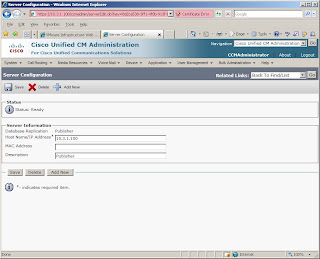
3. Access the Cisco Unified CM Administration web page via the old IP address (10.3.1.100).
4. Go to System | Server and change the IP address there (change it from 10.3.1.100 to 10.101.10.5). This is what you didn't do the first time.
5. Access the Cisco Unified OS Administration page at the still functioning original address (10.3.1.100).
6. Go to Settings | IP | Ethernet and change the address to the new one there (from 10.3.1.100 to 10.101.10.5).
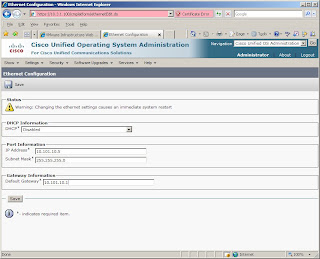
7. Wait for system to reboot.
8. Enjoy your server at the new address (10.101.10.5).
There are some posts hanging around the Internet regarding changing the IP address on a CallManager server running in VMWare. The problem reported is that although you can very easily change the server address from an SSH session using set network ip eth0 your_server_ip_address your_subnet_mask or from Cisco Unified OS Administration, you cannot login to the Cisco Unified CM Administration page after the change.
You will be able to SSH to the new address but when you run utils service list you will find Cisco CallManager is stopped. If you haven't noticed by now, your phones are also dead (or running on SRST if so configured).
Do not panic. You probably need to get your hands on a serviceability guide.
Let's assume your CallManager was at 10.3.1.100 and worked. Then you changed it to 10.101.10.5 and it didn't...
1. Use the same procedure you used to set a new IP address on your server and break it to set it back to the old one (change it back to 10.3.1.100 from 10.101.10.5).
2. Reboot the server (if not forced to automatically).

3. Access the Cisco Unified CM Administration web page via the old IP address (10.3.1.100).
4. Go to System | Server and change the IP address there (change it from 10.3.1.100 to 10.101.10.5). This is what you didn't do the first time.
5. Access the Cisco Unified OS Administration page at the still functioning original address (10.3.1.100).
6. Go to Settings | IP | Ethernet and change the address to the new one there (from 10.3.1.100 to 10.101.10.5).

7. Wait for system to reboot.
8. Enjoy your server at the new address (10.101.10.5).
Monday, October 27, 2008
Display message class in Outlook / IPM.Note.voice.unity
In Outlook 2007, highlight your inbox (or any folder),
Choose View | Current View | Customize Current View,
Click Fields,
Choose All Mail Fields from the drop down,
Move Message Class to the right,
Change your Number of Lines to an appropriate value, or move up the Message Class.
Enjoy viewing your message classes!
Choose View | Current View | Customize Current View,
Click Fields,
Choose All Mail Fields from the drop down,
Move Message Class to the right,
Change your Number of Lines to an appropriate value, or move up the Message Class.
Enjoy viewing your message classes!
Saturday, October 25, 2008
C# Excel OLEDB and Could not find installable ISAM
So you have chosen to manipulate Excel spreadsheets with C#, and rather than using Excel Automation you are using OLEDB. Now you find you receive "Could not find installable ISAM" when bebugging.
I will bet it has to do with escaping the quotes surrounding the "Extended Properties" in your connection string. Personally, things worked fine for me util I added the HDR or IMEX variables.
The Excel references at www.connectionstrings.com are very helpful and indicate the quotes are an issue, but don't provide specific working examples.
Here you are:
String sConnectionString = "Provider=Microsoft.Jet.OLEDB.4.0;Data Source=C:\\Test.xls;Extended Properties=\"Excel 8.0;HDR=No;IMEX=1;\"";
or maybe more helpfully:
String sFile = "C:\\Test.xls";
String sConnectionString = "Provider=Microsoft.Jet.OLEDB.4.0;Data Source=" + sFile + ";Extended Properties=\"Excel 8.0;HDR=No;IMEX=1;\"";
Notice the \" escapes surrounding Excel 8.0;HDR=No;IMEX=1;
Hope that helps.
I will bet it has to do with escaping the quotes surrounding the "Extended Properties" in your connection string. Personally, things worked fine for me util I added the HDR or IMEX variables.
The Excel references at www.connectionstrings.com are very helpful and indicate the quotes are an issue, but don't provide specific working examples.
Here you are:
String sConnectionString = "Provider=Microsoft.Jet.OLEDB.4.0;Data Source=C:\\Test.xls;Extended Properties=\"Excel 8.0;HDR=No;IMEX=1;\"";
or maybe more helpfully:
String sFile = "C:\\Test.xls";
String sConnectionString = "Provider=Microsoft.Jet.OLEDB.4.0;Data Source=" + sFile + ";Extended Properties=\"Excel 8.0;HDR=No;IMEX=1;\"";
Notice the \" escapes surrounding Excel 8.0;HDR=No;IMEX=1;
Hope that helps.
Subscribe to:
Posts (Atom)